
- Vrealmatic
- Mikrotik Router
- Netinstall
Netinstall in practice: recovering a MikroTik that won't respond even after a factory reset
MikroTik unreachable after a RouterOS update and a reset button factory reset doesn't help? How to determine the router's state, when to switch to Netinstall and how to reinstall RouterOS on Windows step by step.


Quick answer
Router unresponsive even after a reset? Reinstall RouterOS with Netinstall.
If the router doesn't show up in WinBox after a correctly timed reset, RouterOS is not booting and a configuration reset won't fix it. Netinstall installs the system from scratch. The RouterBOOT bootloader is separate from RouterOS, so the router is almost always recoverable and the license is preserved.
Router unresponsive after an update
Reset by the LED
and check WinBox → Neighbors
Router still not visible
Netinstall
reinstall RouterOS
What you need
Windows or Linux
netinstall-cli for Linux.Ethernet cable
Packages and Netinstall
15–30 minutes
1. Determine the router's state
Netinstall only makes sense once problems on the computer side are ruled out. Run three checks:
Check 1
Computer IP address
ipconfig must show 192.168.88.x for the wired adapter.
169.254.x.x means the router didn't answer DHCP. Set 192.168.88.2/24 manually.
Check 2
WinBox → Neighbors
Cable in ether2, Windows Firewall temporarily off, Refresh after 1–2 minutes.
WinBox discovers routers by MAC address (MNDP, UDP 5678), even without an IP.
Check 3
Reset by the LED
Release the button according to the USR LED; timings are only a rough guide. On some models the LED starts flashing only after 9 s.
Router ports
ether1 – Internet / PoE in
WAN with a firewall in the default configuration; management is blocked here. Used for Netinstall.
ether2 to ether5 – LAN
Router 192.168.88.1/24, DHCP server. Connect the computer here for WinBox and the web UI. User admin, password on the label (empty on older units).
Reset button
Unplug power, press RES/WPS, plug power in and keep holding. The result depends on what the USR LED is doing when you release the button:
The router loads the backup bootloader; the LED doesn't react yet.
Reset to the default configuration.
Reset and enable CAPs mode.
Etherboot: the router waits for Netinstall on ether1.
A configuration reset only erases settings. It cannot repair a damaged or non-booting system.
Evaluation
Router in Neighbors, or the computer has 192.168.88.x
RouterOS is running; the problem is the connection. Log in via WinBox by clicking the MAC address, see first connection.
Neighbors stays empty even after a correct reset
RouterOS doesn't boot. Further attempts are pointless; continue with step 2.
Diagnostics from macOS
Capture router traffic with tcpdump
Find the wired interface (Wi-Fi is usually en0), set an IP and watch what the router sends:
networksetup -listallhardwareports
sudo ifconfig en5 inet 192.168.88.2 netmask 255.255.255.0
sudo tcpdump -i en5 -n -e- packets on UDP 5678 (MNDP) → RouterOS is running,
- repeated BOOTP/DHCP requests from the router's MAC → the router is waiting in Etherboot mode,
- silence even after 2–3 minutes → RouterOS doesn't boot.
Netinstall itself does not run natively on macOS.
2. Download the files
On mikrotik.com/download choose the Stable channel and the router's architecture. Example for hAP ac² (ARM):
System package
RouterOS
routeros-7.24.5-arm.npk
The base system.
Extra packages
wireless
wireless-7.24.5-arm.npk
Wi-Fi drivers, a separate package since RouterOS 7.13.
Netinstall → Win64
Netinstall
netinstall.exe in a ZIP
Same version as the packages.
Put both .npk files in one folder and unzip Netinstall.
Architecture by model
The exact architecture is shown by Find your hardware on the Downloads page. A rough guide:
ARM
hAP ac², hAP ac³, cAP ac, RB4011
ARM64
hAP ax², hAP ax³, RB5009, hEX refresh
MMIPS
hEX (RB750Gr3), hEX S
MIPSBE
hAP ac, hAP ac lite, RB951, RB2011
SMIPS
hAP lite, hAP mini
What not to download
The “netinstall” package under Extra packages
wifi-qcom-ac
Unused extra packages
3. Netinstall step by step
Prepare the computer
- 1
Set a static IP on the wired adapter
Win+R→ncpa.cpl→ "Ethernet" adapter → Properties → TCP/IPv4 → IP192.168.88.2, mask255.255.255.0, gateway and DNS empty. Or in a command prompt run as administrator:netsh interface ip set address name="Ethernet" static 192.168.88.2 255.255.255.0 - 2
Verify the IP
ipconfigmust show192.168.88.2for "Ethernet adapter Ethernet". - 3
Turn off Wi-Fi, other connections and temporarily Windows Firewall
Netinstall needs one unambiguous network interface.
- 4
Connect the cable from the computer to ether1
Netinstall only works through the first port (or a port labelled BOOT).
Install RouterOS
- 5
Run
netinstall.exeas administrator - 6
Net booting
Tick Boot Server enabled, Client IP
192.168.88.3, confirm with OK. - 7
Put the router into Etherboot mode
Unplug power, hold reset, plug power in and keep holding until the router appears in the Routers/Drives list (usually 15–25 s).
- 8
Select the router's row
Recognize it by the MAC address, architecture and the filled-in Software ID field.
- 9
Select the packages
Browse next to the From field → folder with the
.npkfiles → tick both routeros and wireless. - 10
Tick Apply default config
Leave the Key field empty; Netinstall keeps the license.
- 11
Click Install and wait for status Done
The router reboots by itself after installation. Don't unplug it during the process.
Never select a local drive in the Routers/Drives list
Netinstall can install onto drives too, so the list also shows the computer's drives (e.g. D:\). Installing onto a drive wipes it.
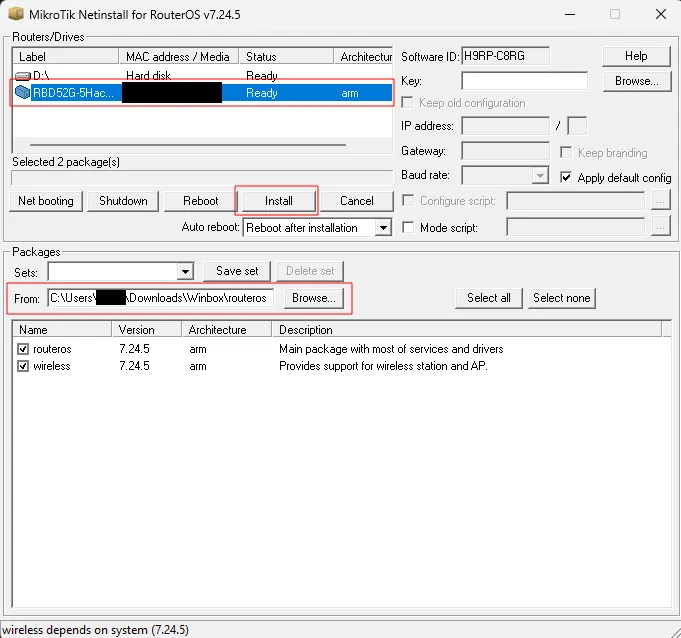
- 1The router's row with status Ready (not the
D:\drive). - 2Package folder via Browse, both
routerosandwirelessticked. - 3Install starts the installation. Apply default config ticked on the right.
4. After the installation
- 1
Restore the computer's network settings
Move the cable to ether2, switch the adapter back to DHCP, turn the firewall and Wi-Fi back on.
netsh interface ip set address name="Ethernet" dhcp - 2
Log in and set a password
WinBox → Neighbors or
http://192.168.88.1, useradmin, password from the label (or empty). Set your own password right away. - 3
Upgrade RouterBOOT
This brings the bootloader in line with the installed RouterOS version.
/system routerboard upgrade /system reboot - 4
Configure the router
WAN, Wi-Fi and DHCP via Quick Set, or restore a backup.
Troubleshooting
Netinstall most often fails on the computer's configuration.
“Could not find network interface”
ipconfig, set the IP with netsh and keep the router powered so the adapter has a link.The router never appears in Netinstall
Windows shows several network adapters
The Key field contains a folder path
Ping to 192.168.88.1 fails after installation
Prevention
Back up before every update
Download the files to your computer, more in Backup.
/export file=config-before-upgrade
/system backup save name=backup-before-upgrade
Don't touch the router during an update
Update from Stable or LongTerm
Keep Netinstall ready
FAQ
Can an update permanently damage a MikroTik?
Practically not in software. The RouterBOOT bootloader is separate from RouterOS. If the LED reacts to the reset button and the router shows up in Netinstall, the hardware is fine and RouterOS can be reinstalled.
Why doesn't a factory reset help?
A reset erases the configuration and leaves the system in place. If RouterOS doesn't boot, there is nothing for the reset to restore; Netinstall is the fix.
Does Netinstall erase the license or settings?
The license stays: it is stored in the device and Netinstall preserves it. Configuration and files on the router are erased.
Can Netinstall run on macOS?
Not natively. Netinstall exists for Windows and Linux (netinstall-cli). On a Mac, Linux in a virtual machine with a bridged network adapter is an option.
Sources: MikroTik: Netinstall, MikroTik: hAP ac² (reset button), MikroTik: Packages.
Need a secure network setup?
We design, secure and document networks and servers.